
Errors
Backup and Restore Instructions
Backup
In HorseTrak choose “Backup Data Files” from the File menu.
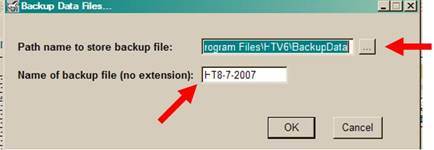
Use the “…” button to select the LOCATION (Path) of where you want to store the backup.
Enter a name for the backup file.
On a multiuser system make sure no other users are in the system.
Click OK to perform the backup.
Restore
** NOTE – the restore process will replace the current data. Run a back to save the current data before restoring. **
In HorseTrak choose “Restore Saved Data Files” from the File menu.
Click “Select Backup file set to restore” button and choose the backup file you want to restore. These usually start with “HT” and end with “.zip”.
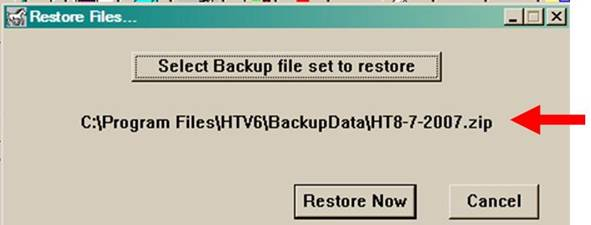
Once you have selected the Backup file to Restore it will display in the window.
Click “Restore Now” to restore the data or “Cancel” to return to the menu.
A Progress screen and Rebuild screen will process the data and you will be returned to the menu upon completion.
Duplicate Key Error
The problem with duplicate records is that the index needs to be rebuilt.
Open HorseTrak
Click My Preferences -> My Preferences
Click the Repair/Restore Old Data tab
Under Data Repair is a button that says “Rebuild Next Number”. Click that.
Once it finishes, click Okay and try one of the entries you were having a problem with.
Contact Support if that does not work.
Installing & Upgrading
Backup and Restore Instructions
Backup
In HorseTrak choose “Backup Data Files” from the File menu.
Use the “…” button to select the LOCATION (Path) of where you want to store the backup.
Enter a name for the backup file.
On a multiuser system make sure no other users are in the system.
Click OK to perform the backup.
Restore
** NOTE – the restore process will replace the current data. Run a back to save the current data before restoring. **
In HorseTrak choose “Restore Saved Data Files” from the File menu.
Click “Select Backup file set to restore” button and choose the backup file you want to restore. These usually start with “HT” and end with “.zip”.
Once you have selected the Backup file to Restore it will display in the window.
Click “Restore Now” to restore the data or “Cancel” to return to the menu.
A Progress screen and Rebuild screen will process the data and you will be returned to the menu upon completion.
Moving to a new Machine
The usual procedure to move to a new machine is as follows:
1. Install HorseTrak on the new machine and activate.
2. Run a data backup on the old machine’s HorseTrak – this is the built in backup function.
3. Copy the Backup File to a Thumb Drive or attach it to an email so that you can get the backup file to the new machine.
4. Using the Restore function on the new machine, restore the backup data.
5. Test and compare.
Depending on the software on the old machine, you may need to upgrade the version of HorseTrak.
Older versions are not compatible with newer versions of Windows.
I’ve been a customer for years and I’m never kept informed on your products!
We try and keep people informed as much as possible, but users frequently change their email address because of excessive spam, etc.
You can follow us on Facebook through the link below. If you have not received any emails from us, maybe we do not have your contact information. Send a message to Sales and they will add you to our list.
I bought one of your programs about 10 years ago. Do I have to pay full price for an upgrade?
HorseTrak Software Upgrade Policy
When a new Version is available, HorseTrak Software will offer FREE upgrades to registered customers according to the following terms and conditions:
- All purchases include 12 months of maintenance.
- Maintenance Plans: Customers on a current Maintenance Plan Subscription will receive all minor and major upgrades within the term of the maintenance plan.
- Maintenance Plan fees are approximately 20% of the current price of the software.
- Expired Maintenance Plan reinstatement is available by paying retroactive maintenance fees.
- Prices and policies are subject to change at our discretion and without prior notice.
Please contact Sales of you have any questions about the policy.
Is my new version compatible with my Windows system? Is it compatible with Mac?
See the Systems Requirements page.
How come I haven’t received my activation code yet?
See Activation Code
I had to reinstall/download my program again and now my activation code won’t work!!
ACTIVATION CODES
New purchases:
If you have just purchased HorseTrak, you will receive 2 e-mails. Once containing a receipt and another containing download and activation instructions. That is all you need.
Please make sure you unblock “amerisoftcorp.com” and “horsetrak.com” in your spam filter if you have one otherwise our e-mails may not get through.
Product re-activation:
Please send an e-mail to: horsetrak@amerisoftcorp.freshdesk.com
Include the following information:
Where did you purchase HorseTrak
Your e-mail Address
Name
Company
Full Address
Phone
Any additional Info
We will response as soon as possible. – Usually within a few hours.
Do I qualify for a free upgrade?
HorseTrak Software Upgrade Policy
When a new Version is available, HorseTrak Software will offer FREE upgrades to registered customers according to the following terms and conditions:
All purchases include 12 months of maintenance.
Maintenance Plans: Customers on a current Maintenance Plan Subscription will receive all minor and major upgrades within the term of the maintenance plan.
Maintenance Plan fees are approximately 20% of the current price of the software.
Expired Maintenance Plan reinstatement is available by paying retroactive maintenance fees.
Prices and policies are subject to change at our discretion and without prior notice.
Please contact Sales of you have any questions about the policy
Is my version of HorseTrak still supported?
See the End of Life page for current status.
I purchased in 2002 and tried to activate my program with the PASSCODE from the package and it doesn’t work!
Older versions may require and upgrade. Contact sales and include the version # and edition of your software.
Purchasing
What’s the difference between HT Business and HT Gold?
See the Products page for detailed list of features and a chart listing feature differences.
Is my new version compatible with my Windows system? Is it compatible with Mac?
See the Systems Requirements page.
Shucks! I recently purchased HT Business and realized I needed a higher version program. Can I upgrade without paying full price?
Yes, there are discount prices available for past and recent users. Click here
Getting Started
How do I import my old version data to my new upgrade?
Click Backup and Restore for procedures
Where’s my user’s manual?
The manual is installed along with the software. A link to the PDF version of the manual is added to the start menu. Pressing the F1 key also activates the online help which is nearly identical to the manual.