|
|
|
Selecting Database Data for the Blanks in the Form
Forms Manual Table Of Contents
Getting To Forms
Creating or Editing a Form
Entering Data in the Blanks
Printing the Form
Forms Print Previews
HorseTrak Business Plus, Gold, or Deluxe
(HorseTrak Forms users see Stand Alone Forms below)
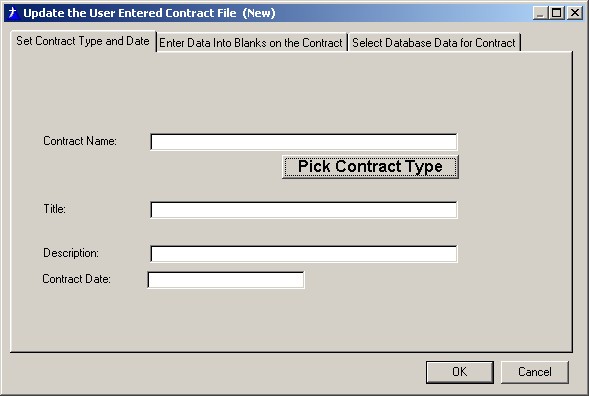
After you picked the
Contract Type
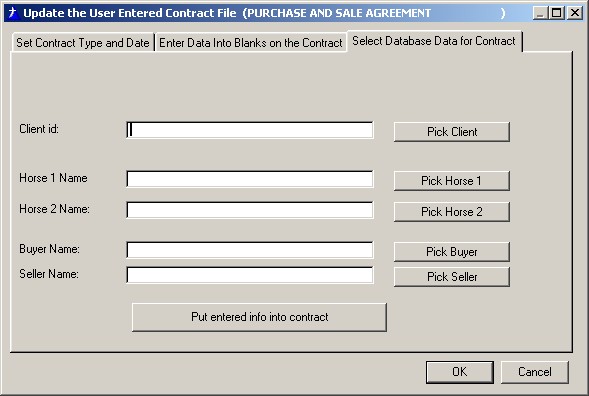
, in Business Plus, Gold, or Deluxe, select the Select Database Data for the Contract
tab as shown (click the image to enlarge):
Using the buttons on this screen, you can select clients, buyers, and sellers, as well as horses to go into the blanks on the contract.
It should be noted that most contracts or forms only require one horse, and so only selecting Horse 1 is necessary.
For forms that require two horses, horse 1 will be the mare and horse 2 will be the stallion.
After selecting all the approriate data, click the Put entered info into contract button. Then proceed to the link below for how to fill in the rest of the blanks.
Stand Alone Forms Program
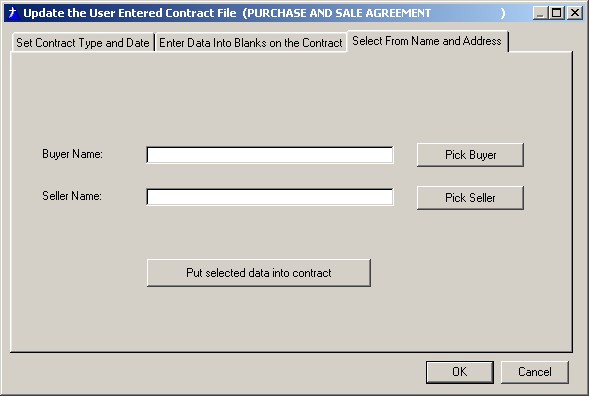
If you are using the stand alone Forms Program, you can still select buyer and seller information from the Name and Address table in your programs. To do this, after selecting the contract type, click the Select From Name and Address tab as shown (click image to enlarge):
Using the buttons on this screen, you can select persons or businesses from your Name and Address table to go in the Buyer and Seller positions on a contract.
After selecting the desired data, click the Put selected data in contract button.
For both versions The next step is:
Entering Data in the Blanks
|
|