HorseTrak Logo
 

Creating or Editing a Form


  • Forms Manual Table Of Contents
     
  • Getting To Forms
  • Selecting Database Data For the Form
  • Entering Data in the Blanks
  • Printing the Form
  • Forms Print Previews
     
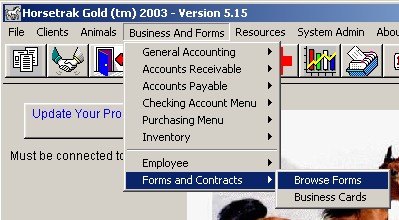
    This is the forms browse screen you arrive at by clicking the Forms/Contract Button or selecting Browse Forms from the menu:
     
    Click to Enlarge
     
  • To delete a previously created form, click in the browse on that form, then click the Delete button
  • If you wish to edit a form, or change the data in the blanks, highlight that form in the browse and then click the Change button.
  • To start a new form click the Insert button
     
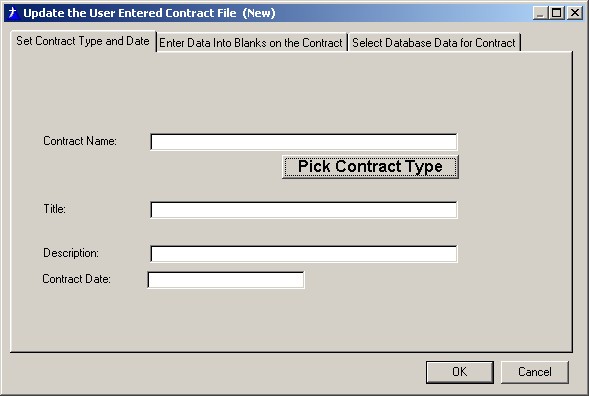
    If you click the Insert or Change buttons, you will be brought to the forms/contract type selection screen (click image to enlarge):
     
    Click to Enlarge
     
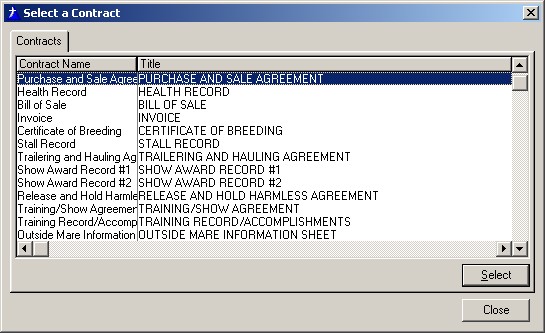
  • Click the Pick Contract Type button to see the list of available forms and select one from the following screen (click image to enlarge):
     
    Click to Enlarge
     
    The Contract Name field will be filled in by the type selection. Enter a description to help you recognize the purpose of the form when you return to the program later. Then put a date in the Contract Date field.
     
    The next step is:
  • Selecting Data for the Form


  • | Site Map | Home | Download Your Program | About Us | Contact Us | FREE Demos | Activation Codes | Product License | Product Comparison


    All Material © 1991-2011 American Riviera Software Corp and HorseTrak Software™

    Printing The Forms


  • Forms Manual Table Of Contents
  • Getting To Forms
  • Creating or Editing a Form
  • Selecting Database Data For The Form
  • Entering Data in the Blanks
  • Forms Print Previews
     
  • From the main forms browse screen
  • Select the form you want to print by clicking on it once
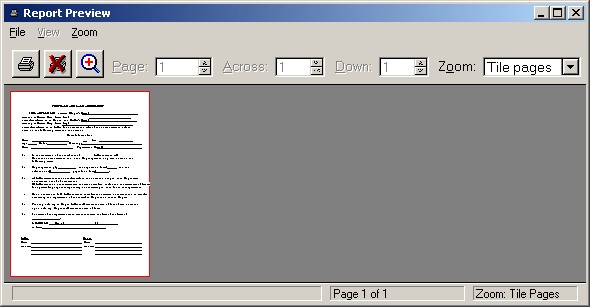
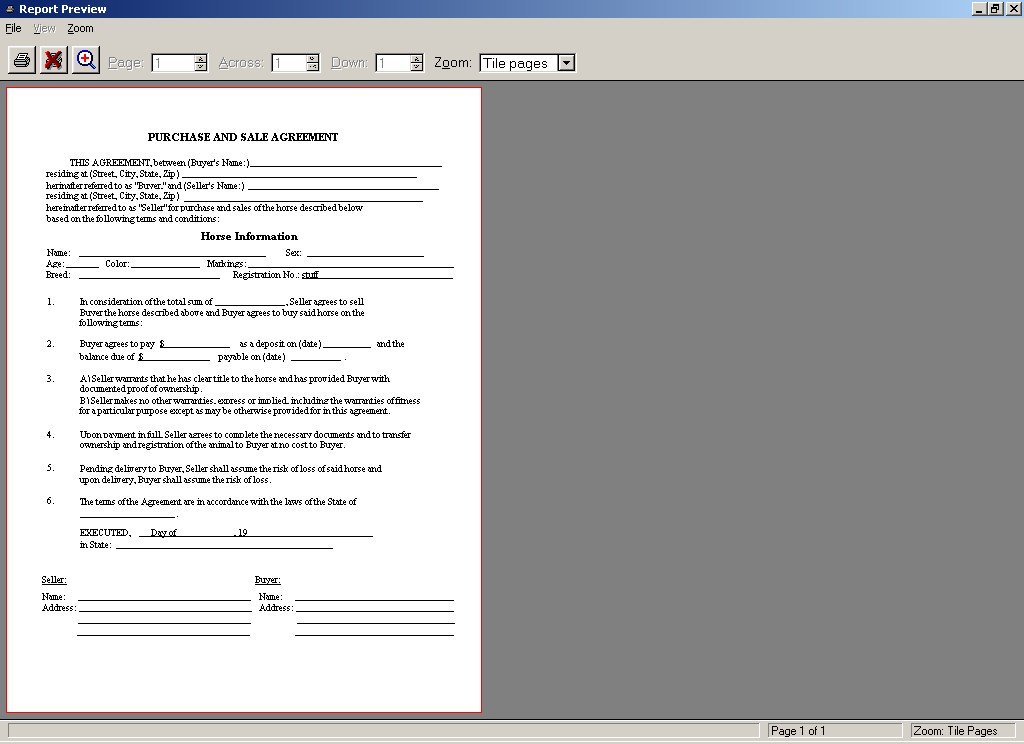
  • Click the Print/Preview button, this will bring up the print preview for the form in a window as shown (click image to enlarge):
     
    Click to Enlarge
     
  • To better view the form, maximize by clicking the square in the upper right hand corner (not the _ or X). This control looks like:
     
     
  • Then adjust the zoom using the zoom control. This control can be selected either from the menu, or the button that looks like a magnifying glass with a plus (+) sign in it:
     
  • The button with the picture of a printer will send the form to your printer.
  • The button with the red X on it will close the print preview without printing anything
     
  • Adjusting the two controls above, the preview can be better viewed as shown (click image to enlarge):
     
    Click to Enlarge
     
  • Forms Manual Table Of Contents
  • Forms Print Previews Free Horse Software and Pet Software Demos - HorseTrak Software!
    HorseTrak Logo
     

    Creating or Editing a Form


  • Forms Manual Table Of Contents
     
  • Getting To Forms
  • Selecting Database Data For the Form
  • Entering Data in the Blanks
  • Printing the Form
  • Forms Print Previews
     
    This is the forms browse screen you arrive at by clicking the Forms/Contract Button or selecting Browse Forms from the menu:
     
    Click to Enlarge
     
  • To delete a previously created form, click in the browse on that form, then click the Delete button
  • If you wish to edit a form, or change the data in the blanks, highlight that form in the browse and then click the Change button.
  • To start a new form click the Insert button
     
    If you click the Insert or Change buttons, you will be brought to the forms/contract type selection screen (click image to enlarge):
     
    Click to Enlarge
     
  • Click the Pick Contract Type button to see the list of available forms and select one from the following screen (click image to enlarge):
     
    Click to Enlarge
     
    The Contract Name field will be filled in by the type selection. Enter a description to help you recognize the purpose of the form when you return to the program later. Then put a date in the Contract Date field.
     
    The next step is:
  • Selecting Data for the Form


  • | Site Map | Home | Download Your Program | About Us | Contact Us | FREE Demos | Activation Codes | Product License | Product Comparison


    All Material © 1991-2011 American Riviera Software Corp and HorseTrak Software™